
Files and database
Your app’s data lives in its own storage. Files in a directory, structured data in its own database. You can reach both yourself, for a migration, an import, or just to look.
Files over SFTP#
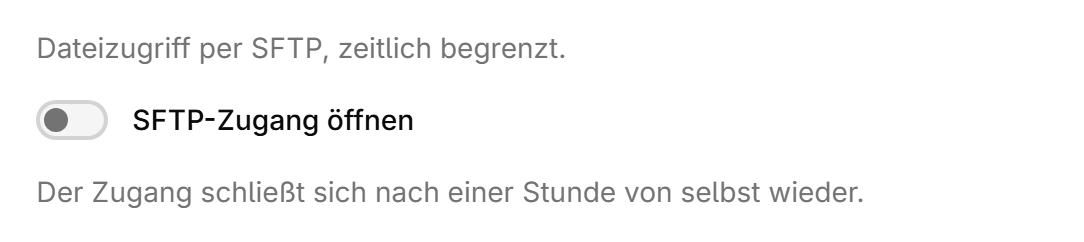
- Open SettingsSFTP and switch the access on.
- Host, port and username appear there, the password comes from “Copy password”.
- Connect with any SFTP client.
Almost every file tool speaks SFTP, among them WinSCP on Windows, Cyberduck on macOS, rclone or the sftp command on the command line. On the first connection you confirm the server fingerprint, after that your client recognises it.
- You can only write into the subdirectories you see. Anything you drop one level above that, the app will not see.
- Files starting with a dot are hidden by many clients. Turn on hidden files if the folder looks empty.
- Stop the app before larger operations, otherwise it writes underneath you.
Note
Do not leave the access open permanently. Switching it off closes it again, and “Renew credentials” throws away a password that got away from you.

Database#
Apps with their own database let you look inside. Under SettingsDatabase you switch the access on. A link to a database console in the browser and the credentials appear. Import and export run through it as well.
Careful
Database access is billed while it is switched on, even when the app is stopped. Switch it off when you are done.
Some apps have no separate database and keep everything in a file. Then there is nothing to switch on here. You fetch that file over SFTP, ideally while the app is stopped.
Careful
Writing straight into the database can take an app apart. Run a backup first, and keep the app stopped while you import.
Taking everything with you#
For a full export you stop the app, copy the files over SFTP, export the database and start the app again. That is all of it. The same open source software keeps running on your own server with it.
Was this page helpful?