
Managing your apps
Every app has its own card in the dashboard. It shows the state, the address, the size you booked and everything you can do with it.
What the card shows#
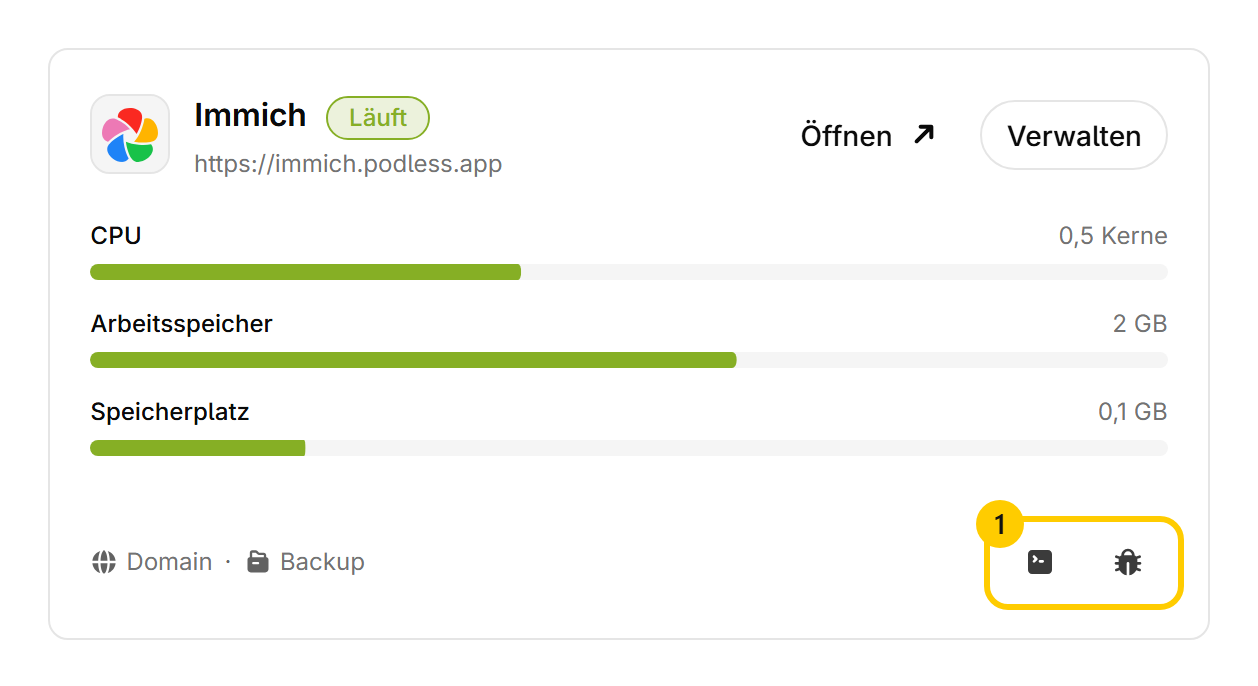
The top carries the name, the state and the address, below them the three bars for the size you booked. “Open” calls up the app, “Manage” leads into the settings, and the links for domain and backup jump straight to the matching entry in there. The two buttons at the bottom right 1 carry no label. The left one shows the log, the right one reports a problem to us.
States#
Stopping and starting#
Stopping shuts the app down, the data stays. While it is stopped you pay no CPU and no memory. Storage keeps costing, because taken is taken.
Note
Do not leave an app stopped for months. It catches up on updates at the next start, and the more versions lie in between, the more likely something breaks on the way.
Restarting#
“Restart” takes the app down and brings it back up. It is the first thing to try when something is stuck, and it is what makes changed environment variables take effect.
Reading the log#
“Show logs” shows what the app itself writes out. When it refuses to start, the reason is almost always in there. More on that under When something is stuck.
Deleting#
Careful
Deleting deletes the data. Right away, no grace period, no bin. Whatever sits in your own backup storage stays there, everything else is gone. If you are unsure, run a backup first.
Was this page helpful?